
GamesNFans logo GamesNFans

How to Compare PC Builds and Boost GPU Performance

Squeeze more FPS from the GPU you already own. Our gpu optimization guide covers settings, thermals and how to compare PC builds before you spend a cent.
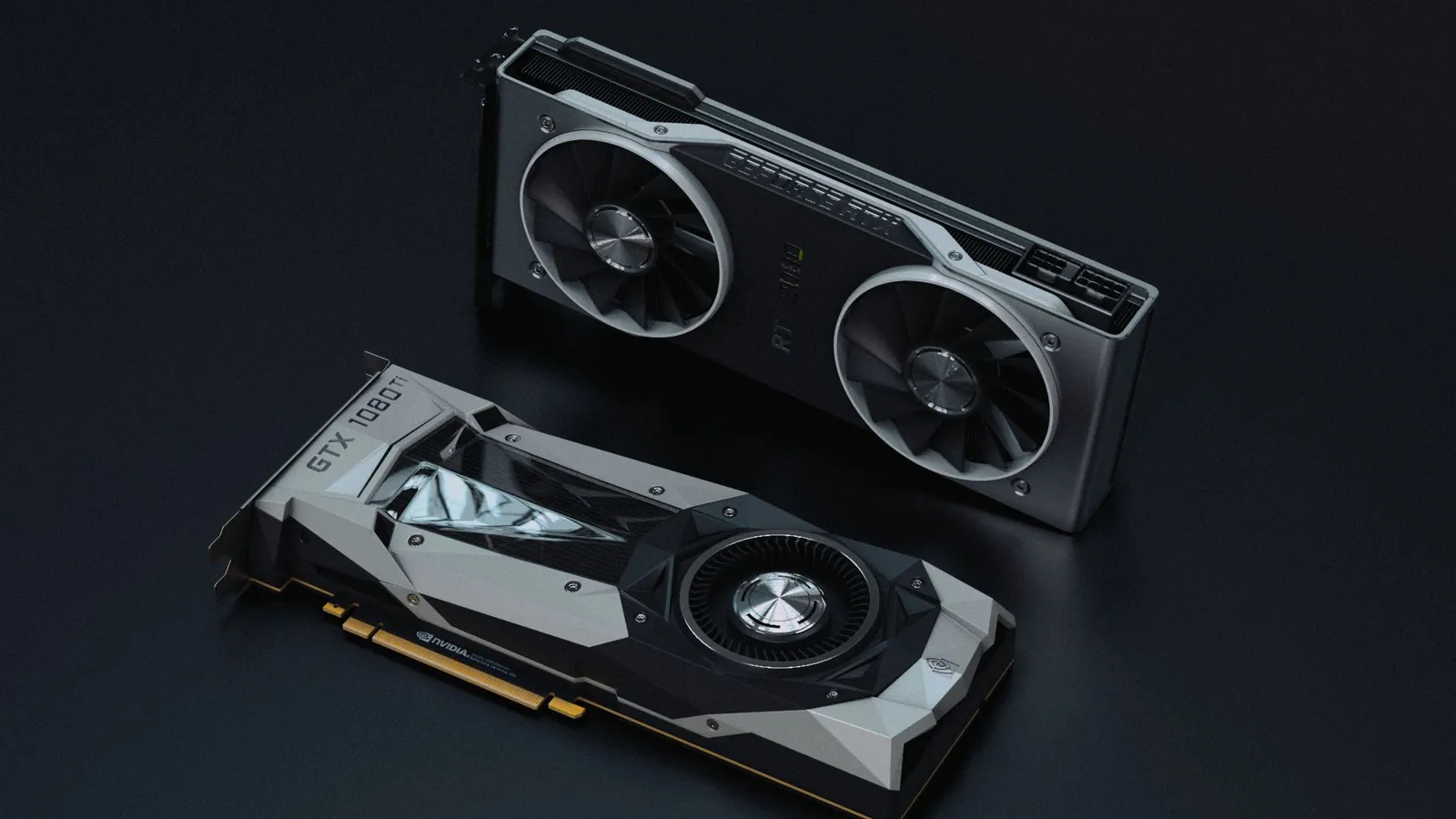
How to Boost Your GPU Performance Without Buying a New One — illustrative featured image
## How to Boost Your GPU Performance Without Buying a New One The RTX 5060 sitting in your cart costs more than the entire mid-range build you put together three years ago. That is the reality for a lot of us in the US, UK and Europe right now, where GPU prices have stubbornly refused to come back down to anything resembling sense. So before you hand over $400 to $600 for a card that will not transform your frame rate the way the box art promises, spend 45 minutes doing the work below. By the end you will have a faster, cooler, quieter machine, and you will know exactly how to compare [PC builds](/blog/gaming-on-a-budget-how-to-build-a-capable-pc-for-under-500-in-2026) the next time you genuinely do need to upgrade. Here is the honest version: most people leave 15 to 30 percent of their GPU's performance on the table through settings, thermals and CPU bottlenecks. Free FPS is sitting there. Let us go get it. ## Step 1: Find out what is actually limiting you You cannot fix a bottleneck you have not measured. Install MSI Afterburner plus RivaTuner Statistics Server (both free) and turn on the on-screen display for GPU usage, GPU temperature, CPU usage per core and frame time. Cap it to a game you play weekly, not a synthetic benchmark that flatters your hardware. Play for 10 minutes, then read the numbers: - **GPU pinned at 95 to 100 percent, CPU loafing below 60 percent:** you are GPU-bound. Steps 2 through 4 are your money. - **GPU at 60 to 70 percent, one or two CPU cores maxed:** you are CPU-bound. Steps 5 and 6 matter more, and no GPU tweak will save you. - **GPU usage spiking and dropping wildly:** thermal throttling or a power limit. Step 3. **What goes wrong:** people skip this and start overclocking a card that was never the problem. If your GPU utilisation sits under 80 percent, stop reading the overclocking sections and go straight to Step 5. ## Step 2: Rebuild your in-game settings from scratch Presets lie. "High" in one engine is "Medium" in another, and a handful of individual settings eat 20 percent of your frame rate for almost no visual gain. Reset to a known baseline, then work up. | Setting | Cost | Our call | |---|---|---| | Shadows | High | Medium. Barely visible in motion | | Volumetric fog / clouds | Very high | Low or off. Huge win | | Reflections | High | Medium, or screen-space only | | Texture quality | Low VRAM cost | Max it if you have the VRAM | | Motion blur | Free to cut | Off, always | Upscaling is the single biggest lever here. DLSS, FSR and XeSS in their Quality modes routinely return 30 to 50 percent more frames for a barely perceptible softness. On a 1440p monitor, DLSS Quality is close to free performance. Turn it on before you touch anything else. **What goes wrong:** you crank upscaling to Ultra Performance and the image turns to soup. Back off to Quality or Balanced. If you see shimmering on thin geometry like fences and foliage, you went too far. ## Step 3: Fix your thermals and your power limit A GPU that runs at 83C is a GPU that has already downclocked itself. Clean the dust out with compressed air, check that your intake fans are actually pulling air toward the card, and if your case is a sealed glass box with two fans, take the side panel off and watch the temperature drop. That is not a permanent fix, but it tells you the case is the problem. Then open MSI Afterburner and set a modest undervolt. Most modern cards run cooler and hold higher boost clocks at 900mV than they do at stock voltage. Expect 5 to 10 percent more sustained performance and a much quieter room. **What goes wrong:** you push the undervolt too far and the game crashes to desktop or the driver resets. That is your signal to add 25mV back. If your card hits its power limit before its thermal limit, raise the power slider instead, but only if your PSU has headroom. ## Step 4: Update drivers, and do it properly Use DDU (Display Driver Uninstaller) to strip the old driver in safe mode, then install the current one clean. This matters more than people admit, especially if you have hopped between vendors or skipped several driver generations. Nvidia, AMD and Intel all ship game-ready profiles that can add double-digit percentage gains in specific titles. Also check that Resizable BAR is enabled in your BIOS. On many cards it is worth 5 to 10 percent in supported games, and it is a single toggle. **What goes wrong:** you install the driver and the screen goes black for 30 seconds. That is normal. If it stays black, your card is seated badly or your PSU is struggling. ## Step 5: If you are CPU-bound, say so out loud Here is the part nobody wants to hear. If your GPU sits at 65 percent while one CPU core redlines, your graphics card is waiting on your processor, and no amount of GPU tuning fixes that. What does help: - Faster RAM with EXPO or XMP enabled in BIOS (check it is actually running at rated speed, not the 2133MHz default) - Closing background apps that hammer a single core - Capping your frame rate just below your monitor's refresh to smooth frame pacing - A CPU upgrade, which on an AM4 or LGA1700 board can be a $150 to $250 move rather than a full rebuild This is also where learning **how to compare [PC builds](/blog/budget-pc-builds-50k-80k-1-2l)** pays off, because you start seeing which component is the actual ceiling rather than guessing. ## Step 6: Know when to stop If you have done all of the above and you are still short of your target, you have two honest options. Buy a used card from the previous generation, where an RTX 4070 or RX 7800 XT often lands between $300 and $400 on the secondhand market, or wait. Prices in the US, UK and Europe have been drifting downward slowly, and a card bought in a panic today is a card you resent in six months. ## Our take Do Steps 1 through 4 first. They cost nothing but an evening. If you are GPU-bound after that and you need more frames now, a used RTX 4070 Super is the best value in the current market, and an RX 7800 XT is the pick if you care about VRAM headroom at 1440p. For CPU-bound rigs on AM4, a Ryzen 7 5700X3D is the single best upgrade you can make without changing your motherboard. Skip the flagship cards. Nothing in the current $700+ tier justifies the price for 1080p or 1440p gaming, and the marketing around them is aimed at people who have not read this far. ## FAQ **Will undervolting my GPU void the warranty?** No. Undervolting runs the card cooler and below its rated voltage, and it is reversible in seconds. Physical damage from a bad overclock is a different story, but a software undervolt is safe. **Does DLSS or FSR make games look blurry?** At Quality mode on a 1440p or 4K panel, most players cannot tell the difference in motion. At 1080p, stick to Quality and avoid the Performance modes, which get soft fast. **How often should I update my GPU drivers?** Every one to two months, or whenever a game you are actively playing gets a new driver profile. There is no need to install every release the day it drops.

Frequently asked questions

Will undervolting my GPU void the warranty?

No. Undervolting runs the card cooler and below its rated voltage, and it is reversible in seconds. Physical damage from a bad overclock is a different story, but a software undervolt is safe.

Does DLSS or FSR make games look blurry?

At Quality mode on a 1440p or 4K panel, most players cannot tell the difference in motion. At 1080p, stick to Quality and avoid the Performance modes, which get soft fast.

How often should I update my GPU drivers?

Every one to two months, or whenever a game you are actively playing gets a new driver profile. There is no need to install every release the day it drops.