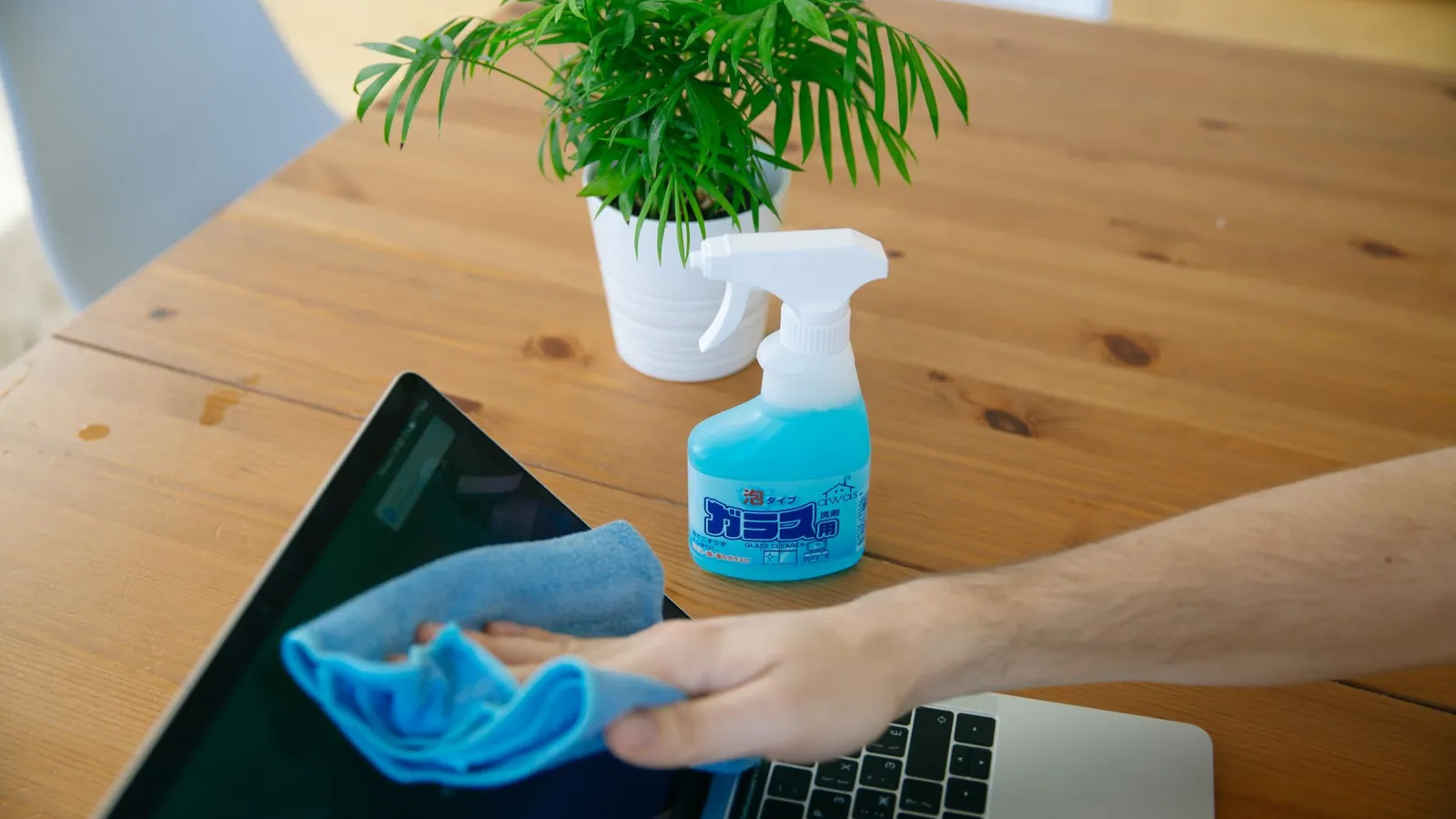
How to Clean a Gaming Monitor Screen and Body Safely
Learn how to clean a gaming monitor screen and body in 15 minutes with household items, plus the mistakes that scratch panels and strip coatings.
# How to Clean a Gaming Monitor (Screen & Body) Without Causing Damage
That smudge on your panel has been bugging you for weeks. Maybe it's a sneeze from a ranked loss, maybe it's the fingerprint your little cousin left during a party, maybe it's the film of dust that makes HDR look like a cheap filter. You have probably already thought about grabbing a paper towel and some glass cleaner. Don't. That combination is how people turn a $400 monitor into a permanent rainbow of scratches.
Here is the good news: a proper clean takes about 15 minutes, costs almost nothing if you already own a microfiber cloth, and protects the one part of your setup you cannot cheaply replace. This is the whole process, screen and body, in the order that keeps you out of trouble. Think of it as the final step in how to [gaming setup](/blog/how-to-set-up-a-gaming-monitor-stand-cables-settings-and-mounting) properly, not an afterthought.
## What you'll need
- **Two microfiber cloths.** One for the panel, one for the body. Label them if you have to. Mixing them up is the most common way people scratch a screen.
- **Distilled or deionized water.** Tap water leaves mineral streaks on anti-glare coatings. A bottle costs a couple of dollars at any supermarket in the US, UK or Europe.
- **A spray bottle** (optional but cleaner than pouring).
- **A soft brush or a can of compressed air.** A clean makeup brush works fine.
- **Isopropyl alcohol, 70% only.** For the plastic body and vents, never for the panel.
- **Time:** 15 minutes. **Budget:** under $10 if you own nothing, $0 if you have a microfiber cloth lying around.
Skip these entirely: paper towels, kitchen roll, glass cleaner (Windex and friends), wet wipes, and anything labelled "screen cleaner" with ammonia in it. Ammonia and alcohol strip the anti-glare coating on modern IPS and OLED panels. That coating does not grow back.
## Step-by-step
### Step 1. Power off and unplug the monitor
Cut all power before you touch anything.
Press the power button, then pull the plug from the back of the monitor, not just the wall. A monitor in standby still has a warm panel, and warm panels smear instead of clean. Wait two or three minutes for it to cool.
**Watch out:** If you skip the unplug and hit a button by accident while wiping, you can leave a permanent pressure mark on the panel. It is rare but it happens.
### Step 2. Let the screen tell you what it needs
Identify whether you are dealing with dust, smudges, or both, because each needs a different touch.
Hold a phone torch at a low angle across the screen. Dust shows as a fine haze. Smudges show as shiny patches. If you only see dust, you can stop after Step 3. If you see smudges, you will need the damp pass later.
**Tip:** Do this with the monitor off. You will see ten times more dirt than you ever noticed while gaming.
### Step 3. Blow the loose dust off first
Remove the grit that scratches before you wipe anything.
Use compressed air in short bursts, holding the can upright and about 15cm from the panel. Work top to bottom so dust falls away from the clean areas. No compressed air? A soft brush, used with almost no pressure, does the job.
**Watch out:** Never spray compressed air at the panel from close range or at an angle. The propellant can spit out as a cold liquid and leave a stain on the coating.
### Step 4. Dry wipe the panel with a microfiber cloth
Lift the remaining dust with a dry pass.
Fold the cloth into quarters so you have a fresh surface for each section. Wipe in straight horizontal lines, top to bottom, with light pressure. Straight lines, not circles, make it easier to spot any grit you are dragging.
**Tip:** If the cloth snags at any point, stop. There is grit on the panel. Go back to Step 3.
### Step 5. Damp clean only the smudged areas
Tackle fingerprints and sneeze marks without soaking the panel.
Dampen one corner of a clean microfiber cloth with distilled water. It should feel barely cool, not wet. Wring out any excess. Wipe the smudge in one direction, then buff the same spot with the dry part of the cloth.
**Watch out:** Never spray liquid directly onto the screen. It runs down the panel, into the bezel, and eventually into the electronics. Spray the cloth, not the monitor.
### Step 6. Dry the panel fully
Remove any moisture before it dries into streaks.
Buff the whole panel with a dry microfiber cloth in the same straight-line pattern. Check with the torch again. If you see faint water marks, repeat Step 5 on that spot with even less water.
### Step 7. Clean the body and bezel with 70% isopropyl alcohol
Now tackle the plastic, which collects the grime your hands leave behind.
Spray a little 70% isopropyl alcohol onto a second microfiber cloth (never directly on the monitor) and wipe the bezel, the back panel, and the stand. Pay attention to the bottom edge of the bezel, where dust and skin oils collect. Wipe the stand last.
**Watch out:** Keep alcohol away from the panel and from any speaker mesh or fabric finish. It can cloud soft-touch plastics and dissolve printed logos.
### Step 8. Clear the vents and ports
Stop your monitor from cooking itself.
Run a soft brush along the top and rear vents, then give them a short burst of compressed air from a distance. For the ports, a dry brush is enough. Do not poke anything metal into a port.
**Tip:** Do this every three months if you live somewhere dusty or have pets. A clogged vent is a slow death for any panel.
### Step 9. Reconnect and check in a dark room
Confirm the clean worked and nothing got damaged.
Plug the monitor back in, power on, and display a dark image (a black wallpaper works). Look for streaks, smudges or scratches under normal light. Then switch to a bright image to confirm the coating still looks even.
**Watch out:** If you see a permanent rainbow patch or a scratch, stop cleaning that area. Further rubbing makes it worse, not better.
## Common problems and fixes
**Streaks that will not budge.** You are using too much water or tap water. Switch to distilled and use less. Buff with a dry cloth while the panel is still slightly damp.
**A smudge that spreads instead of lifting.** You are pressing too hard. Light pressure plus a barely damp cloth lifts oil. Heavy pressure just pushes it around.
**White haze on the bezel after cleaning.** That is alcohol on a soft-touch plastic. It is usually permanent. Wipe future bezels with a dry cloth and only use alcohol on hard plastics.
**Dust back within a week.** Your room airflow is the problem, not your cleaning. Add a cheap air purifier or keep the monitor away from carpet and curtains.
**A visible scratch after cleaning.** It was almost certainly there before, hidden by dust. Nothing removes it. A screen protector is the only prevention.
## Our take
If you own one thing, make it a decent microfiber cloth. The $6 packs sold for camera lenses beat the free cloth that came with your glasses every time. For water, a $2 bottle of distilled water lasts a year. We would skip the branded "gaming screen cleaner" kits entirely; most are alcohol-based and cost three times as much for the same job a damp cloth does. If your monitor sits near a window or in a pet household, a $40 air purifier will do more for screen cleanliness than any spray.
## What to do next
1. **Set a reminder for every three months.** Dust builds quietly and shows up as dull contrast long before you notice it as dirt.
2. **Clean your peripherals while you are at it.** The same microfiber and alcohol routine works on keyboards and mouse shells, and it takes five extra minutes.
3. **Check your cable routing behind the monitor.** If the back panel was filthy, your cables are probably tangled too. Ten minutes now saves you an hour when you next upgrade.
## FAQ
**Can I use glass cleaner on my gaming monitor?**
No. Glass cleaners contain ammonia and alcohol that strip the anti-glare coating on IPS and OLED panels. Use distilled water and a microfiber cloth instead.
**How often should I clean my gaming monitor?**
Dust the panel weekly with a dry microfiber cloth and do the full screen and body clean every three months. Clean more often if you have pets or live in a dusty area.
**Is it safe to use alcohol wipes on the screen?**
Not on the panel. Seventy percent isopropyl alcohol is fine for the plastic body and stand, but keep it away from the screen and any soft-touch finishes.
Frequently asked questions
Can I use glass cleaner on my gaming monitor?
No. Glass cleaners contain ammonia and alcohol that strip the anti-glare coating on IPS and OLED panels. Use distilled water and a microfiber cloth instead.
How often should I clean my gaming monitor?
Dust the panel weekly with a dry microfiber cloth and do the full screen and body clean every three months. Clean more often if you have pets or live in a dusty area.
Is it safe to use alcohol wipes on the screen?
Not on the panel. Seventy percent isopropyl alcohol is fine for the plastic body and stand, but keep it away from the screen and any soft-touch finishes.
 GamesNFans