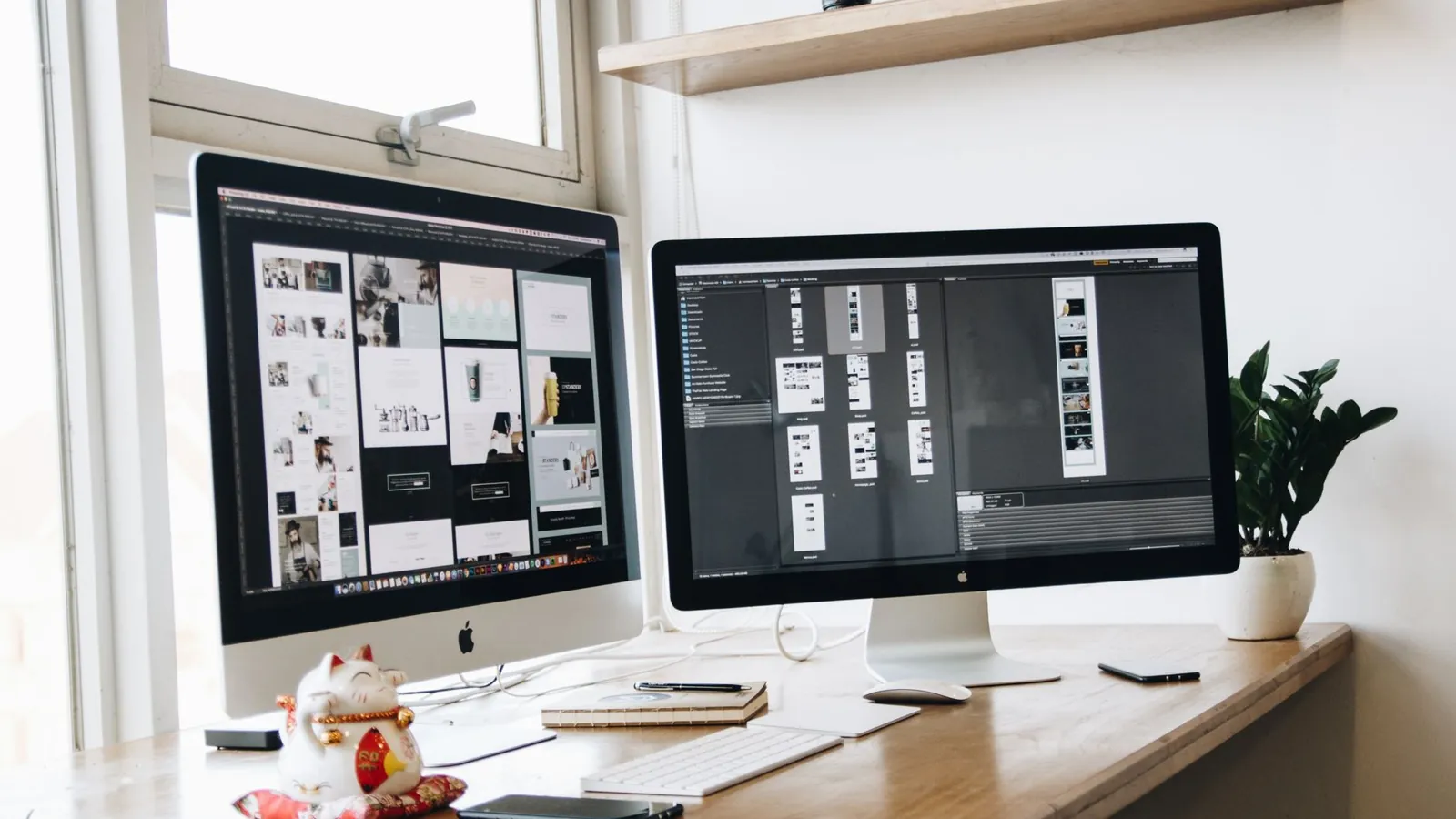
Dual PC Streaming Setup: How to Gaming Setup Guide
Learn how to gaming setup with two PCs for smoother streams. Step-by-step capture card, OBS and audio routing guide for US, UK and Europe players.
# How to Set Up a Dual PC Streaming Setup: Step-by-Step
Your chat stutters. Your frames drop to 90 just as the final circle closes. And when you check the stream later, the VOD looks like it was filmed through a sock. The culprit is almost always the same: one machine trying to render a game and encode a broadcast at the same time. A second PC takes that load off entirely. We're going to walk you through the whole thing, and if your parts are already on the desk, a basic dual PC streaming setup takes about 90 minutes from unboxing to first clean broadcast.
This guide covers how to [gaming setup](/blog/how-to-set-up-a-gaming-monitor-stand-cables-settings-and-mounting) properly when two machines share the job, from the capture card to the audio routing that trips up almost everyone on night one.
## What you'll need
- **Two PCs.** The gaming rig does what it already does. The streaming PC can be modest: a modern 6-core CPU with 16GB of RAM handles a 1080p60 encode without breaking a sweat.
- **A capture card.** This is the bridge. Internal PCIe cards (Elgato 4K60 Pro MK.2, around $250) or USB boxes (Elgato HD60 X, around $170) both work. USB is easier to move between machines.
- **An HDMI cable** from the [gaming PC](/blog/720hz-gaming-monitor-for-esports-is-it-worth-buying-in-india)'s GPU output to the capture card input.
- **A second monitor or a KVM switch** so you can actually see the streaming PC while you play.
- **Streaming software.** OBS Studio is free and does everything you need.
- **A microphone and headset** you're happy with, plus a chat app like Discord.
- **Budget:** expect $400 to $700 if you're buying a used streaming tower, capture card and cables. Reusing an old PC cuts that to the price of the card alone.
- **Time:** 90 minutes for the core setup, plus an evening of tweaking.
## Step-by-step
### Step 1. Place the two machines and plan your cable runs
Get both PCs on the same desk or shelf before you plug anything in, because rerouting HDMI mid-build is miserable. Put the gaming PC where you sit and the streaming PC within arm's reach or on a second desk beside it.
- Keep the capture card's HDMI input facing you. You'll be swapping that cable more than you think.
- Run one network cable to each machine if you can. Wi-Fi on the streaming PC is a common cause of dropped frames that look like encoder problems.
- Label both ends of every cable with tape. Future you will be grateful.
**Watch out:** Don't daisy-chain the capture card through a monitor's passthrough port unless the monitor supports full HDMI 2.0 passthrough. Cheap ones silently cap you at 60Hz.
### Step 2. Connect the gaming PC to the capture card
This step sends your gameplay signal into the streaming machine. Plug one end of an HDMI cable into an output on your gaming GPU and the other into the capture card's HDMI IN port.
- Use the GPU's primary output, not the motherboard's onboard video.
- If your card has a passthrough output, run a second HDMI from the card's HDMI OUT to your [gaming monitor](/blog/how-to-clean-a-gaming-monitor-screen-body-without-causing-damage). This lets you play at full refresh rate while the card mirrors the signal.
- Set the gaming monitor to the highest refresh it supports in Windows display settings.
**Tip:** If your monitor supports 144Hz but the passthrough caps at 60Hz, skip passthrough entirely. Plug the monitor straight into the GPU and use a splitter, or accept a cloned display at the lower rate.
### Step 3. Install the capture card on the streaming PC
Get the streaming machine to recognize the card. For an internal PCIe card, power down, open the case, seat the card in a PCIe x4 or x16 slot and screw it in. For USB, just plug it into a USB 3.0 port on the rear panel.
- Boot the streaming PC and install the manufacturer's driver from their site.
- Open Device Manager and confirm the card appears under "Imaging devices" or "Sound, video and game controllers."
- If it doesn't show up, try a different PCIe slot or a different USB port, ideally one directly on the motherboard rather than a hub.
**Watch out:** USB capture cards hate front-panel ports and unpowered hubs. If OBS sees the card but the picture flickers, move the cable to a rear port.
### Step 4. Set up OBS on the streaming PC
Now you build the scene. Install OBS Studio, then add your capture source.
1. Click the **+** under Sources and choose **Video Capture Device**.
2. Select your capture card from the Device dropdown.
3. Set Resolution to 1920x1080 and Frame Rate to 60 if your card supports it.
4. Click **OK**, then right-click the source and choose **Fit to screen** (or press Ctrl+F).
**Tip:** Under Settings, then Output, set the encoder to your GPU's hardware encoder (NVENC if you have an Nvidia card, AMD HW if you're on Radeon). On a dedicated streaming PC, this keeps CPU usage low enough to run overlays and alerts without stutter.
### Step 5. Route your game audio through the card
This is where most people get stuck. The capture card carries audio over HDMI, so the gaming PC needs to think the card is a speaker.
- On the gaming PC, right-click the speaker icon in the taskbar, open Sound settings, and set the output device to your capture card's HDMI audio.
- On the streaming PC, add an **Audio Input Capture** source in OBS and select the capture card's audio input.
- Play something loud on the gaming PC and watch OBS's audio meter. If it moves, you're done.
**Watch out:** If game audio plays through your headset but not the stream, you've left the gaming PC's output on the headset. You'll need a separate mic or a chat mixer to hear your own game while the card gets the signal. A cheap fix is a 3.5mm splitter or a virtual audio cable app.
### Step 6. Bring your microphone and chat over
Keep voice chat off the game feed and on the streaming PC where you can mix it. Plug your mic into the streaming PC and add it as an **Audio Input Capture** source.
- If you use Discord, run it on the streaming PC and route its output into OBS with a virtual audio cable, or use Discord's own streamer mode.
- Set your mic gain so peaks hit around -12dB in OBS. Louder than that and your compressor will pump.
- Add a noise gate filter to the mic source if your room isn't treated.
### Step 7. Sync the two machines and test a full broadcast
Prove the whole chain works before you go live to anyone. Hit **Start Recording** in OBS, play for five minutes, then watch the file back.
- Check that game audio and voice are both present and roughly in sync. A capture card adds a few milliseconds of latency; OBS's sync offset setting under Advanced fixes small drifts.
- Confirm your stream resolution and bitrate in Settings, then Output. 6000kbps at 1080p60 is the sweet spot for Twitch and YouTube in the US, UK and Europe.
- Run a test stream to an unlisted or private channel and watch it on your phone. That's the only honest quality check.
**Tip:** If the recording looks fine but the live stream stutters, your upload speed is the problem, not the hardware. Drop to 4500kbps or 720p60.
## Common problems and fixes
**Black screen in OBS.** The card sees no signal. Check the HDMI is in the card's IN port, not OUT, and that the gaming PC is outputting to that display. On Windows, press Win+P and choose Duplicate.
**Audio and video drift apart over an hour.** Set a sync offset in OBS under Advanced, usually around 100 to 200ms for USB cards. Test with a clap on camera.
**Dropped frames only when the game gets busy.** Your streaming PC's encoder is maxed out. Switch from x264 to hardware encoding, or lower the output resolution to 900p.
**Echo on voice chat.** Your mic is picking up game audio from speakers. Use headphones, and make sure the capture card's audio isn't also being monitored through your desktop speakers.
**Capture card not detected after a Windows update.** Reinstall the driver, then reboot. If it still fails, reseat the card.
## Our take
If you're buying new, we'd pair an **Elgato HD60 X** with a used Ryzen 5 tower and call it done. The HD60 X is flexible, works on both consoles and PCs, and costs less than most internal cards. Skip the 4K60 Pro unless you're genuinely streaming at 4K, because your viewers on Twitch won't see it anyway with current bitrate caps.
For the streaming PC itself, a refurbished office machine with a recent Intel chip and 16GB of RAM is the smart buy. You do not need a second gaming GPU. You need a stable encoder and a wired connection. Spend the savings on a decent microphone instead, because audio quality moves the needle on retention far more than a few extra frames.
## What to do next
Once the chain is stable, add a second scene in OBS for a "starting soon" screen with your schedule and socials. Then set up a chat overlay so your viewers see messages on stream. Finally, run one full practice broadcast at your intended settings before you announce a schedule. Nothing kills momentum like a first stream that buffers.
## FAQ
**Do I really need two PCs to stream well?**
No. A single modern gaming PC with a good GPU can stream at 1080p60 using hardware encoding. A second PC helps if you play CPU-heavy games, want zero performance hit, or already have a spare machine.
**What's the cheapest capture card that actually works?**
The Elgato HD60 X at around $170 is the reliable floor. Cheaper no-name USB cards exist, but they drop frames and fight with OBS. Buy once.
**Can I use my gaming monitor at 144Hz with a capture card in the chain?**
Yes, if you plug the monitor directly into the GPU and feed the capture card from a second output. Passthrough ports often cap at 60Hz, so check your card's specs before relying on them.
Frequently asked questions
Do I really need two PCs to stream well?
No. A single modern gaming PC with a good GPU can stream at 1080p60 using hardware encoding. A second PC helps if you play CPU-heavy games, want zero performance hit, or already have a spare machine.
What's the cheapest capture card that actually works?
The Elgato HD60 X at around $170 is the reliable floor. Cheaper no-name USB cards exist, but they drop frames and fight with OBS. Buy once.
Can I use my gaming monitor at 144Hz with a capture card in the chain?
Yes, if you plug the monitor directly into the GPU and feed the capture card from a second output. Passthrough ports often cap at 60Hz, so check your card's specs before relying on them.
 GamesNFans